How do I add an athlete to augo?
In the augo app or on the web, open Athletes, tap ADD, then Copy invite. Share the message it gives you. Your athlete downloads the augo app, creates an account, and either taps your invite link or enters your coach code manually to connect with you.
Updated
Athletes join your roster through an invite you generate and share. There is nothing to fill in on your side — no email address, no account setup on their behalf. You copy one message and send it however you already talk to them.
You can do this from the mobile app or from the web app; the steps are the same in both. The screenshots below show the web app.
Sending the invite
Open Athletes and tap ADD
In the mobile app or the web app, open the Athletes panel and tap ADD in the top right.
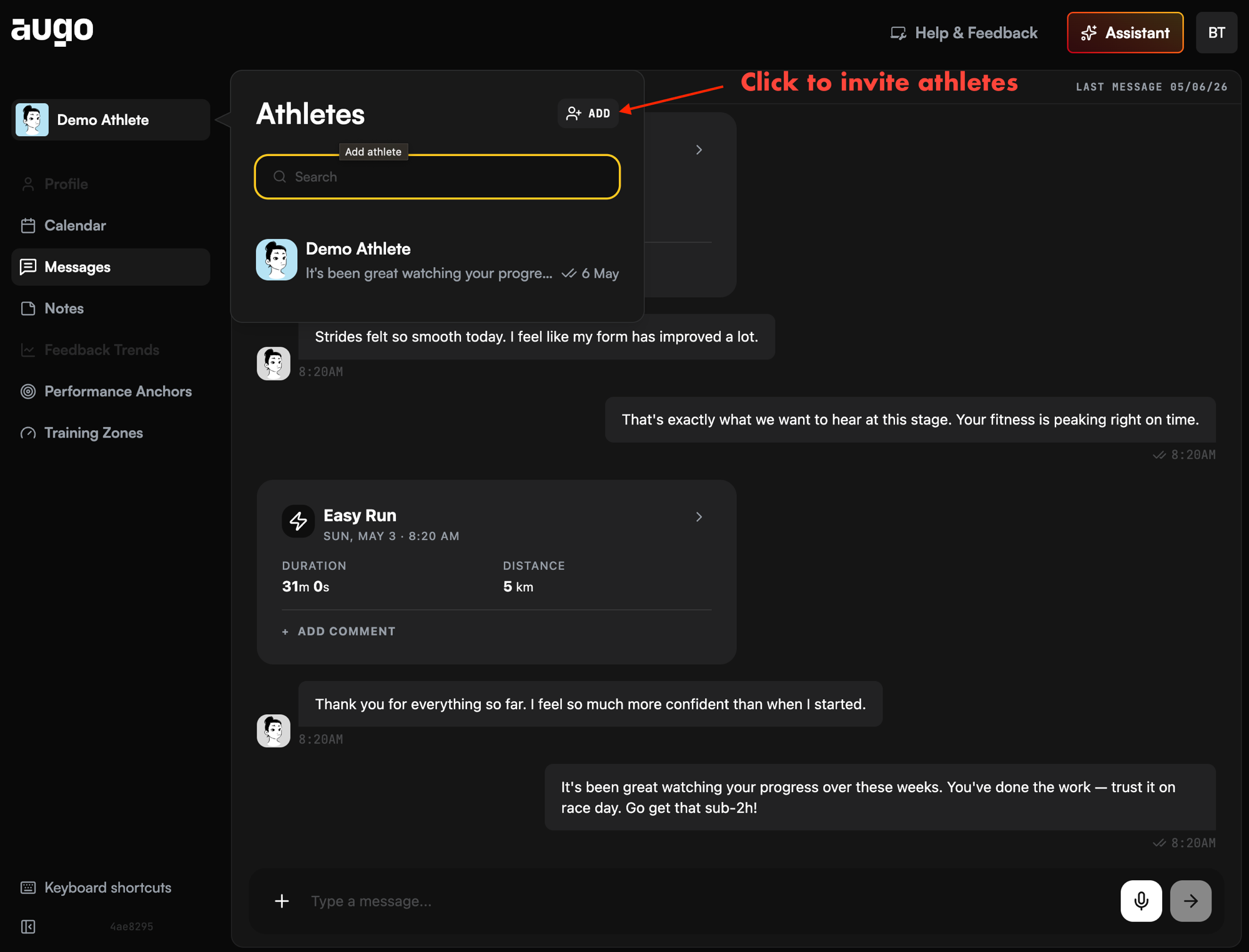
Athletes → ADD. Copy your invite
The Grow your athlete base window opens. Click Copy invite to put the whole invitation message on your clipboard.
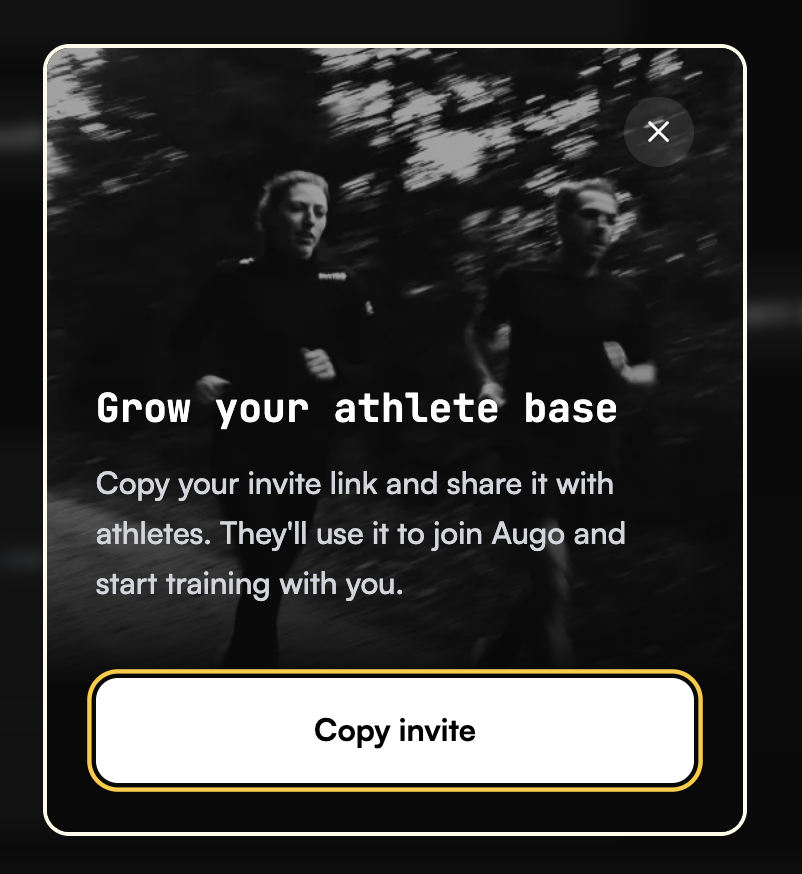
One button copies the full message, link and code together. Send it to your athlete
Paste it wherever you already talk to them — WhatsApp, email, a DM. The copied message looks like this, with your own code filled in:
Hey! I’m inviting you to join me on augo.

Step 1 — Download the app:
https://augotraining.com/en/download

Step 2 — Tap this link to connect with me:
https://app.augotraining.com/join-coach?code=YOURCODE

Alternatively, open the app and enter this code manually:
YOURCODE
The same invite works for every athlete you send it to, so you can reuse it rather than generating a new one each time.
What your athlete does
Two routes, and both end in the same place. If they already have the app, they can skip straight to the second.
- Tap the link. It opens
app.augotraining.com/join-coachwith your code already attached and connects them to you. - Enter the code manually. If the link doesn’t open properly — an in-app browser, a stripped link, a forwarded message — they can open augo and type the code in by hand. Same result.
If they don’t have augo yet, step 1 of the message points them at the download page to install it and create an account first.
After they join
They appear on your roster straight away, but their training feed stays empty until they connect a data source. That step is theirs to do from their own account — you can’t do it for them. See which devices and apps augo syncs with.
Related questions
Where do I find my invite link?
In the mobile app or on the web, open the Athletes panel, tap ADD, then Copy invite. That copies the full message including your link and your coach code.
Can I use the same invite for more than one athlete?
Yes. The invite is yours rather than per-athlete, so you can send the same message to everyone you want to add.
My athlete tapped the link and nothing happened. What now?
Ask them to open the augo app and enter the coach code manually instead. The invite message includes the code for exactly this case — links can get stripped or opened in an in-app browser that cannot hand off to the app.
Why is my new athlete’s training feed empty?
Almost always because they have joined but not yet connected a data source. The athlete has to link Garmin, Coros, Wahoo, Suunto, Polar, Apple Watch, Zwift, Strava, Rouvy or Hammerhead from their own account — a coach cannot do it for them.