How do I bring my training history to augo?
There are three ways to bring your past training into augo. If your history is in TrainingPeaks or Garmin, export it yourself, upload the files to Google Drive and email us the link at info@augotraining.com. We import it for you, and this is the most reliable route. For any other app or device, connect it in augo and email us to ask for a backfill of up to five years, which is less reliable.
Updated
Three ways to bring your history
Your coach can plan better from day one when they can see your past training. There are three ways to bring your history into augo.
| Option | What you do | How reliable |
|---|---|---|
| TrainingPeaks export | Export your files, upload them to Google Drive, email us the link | Most reliable (recommended) |
| Garmin export | Export your files, upload them to Google Drive, email us the link | Most reliable (recommended) |
| Any other source | Connect it in augo, then email us to ask for a backfill | Less reliable, not guaranteed |
If your history is in TrainingPeaks or Garmin, please use one of those. You do the export yourself, and we do the import for you.
Option 1: Export from TrainingPeaks
TrainingPeaks lets you export about 3 to 4 months at a time. You'll do the steps below once for your most recent months, then repeat steps 3 to 6 for each older block.
Before you start
- Use a computer. The export isn't in the TrainingPeaks mobile app.
- Log in at trainingpeaks.com in your web browser.
- Decide how far back to go, for example 12 months. That's four exports of 3 months each.
Open Settings
Click your name and profile picture in the top right, then choose Settings.
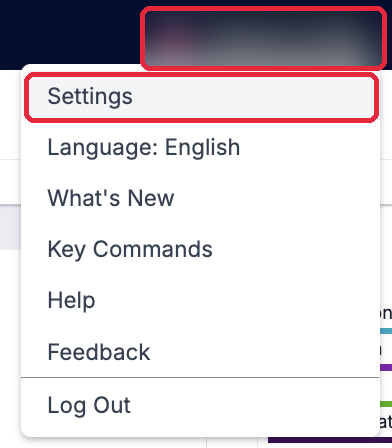
Your name, top right, then Settings. Click Export Data
In the Account Settings window, click Export Data. It's the last item under Account in the left-hand menu.
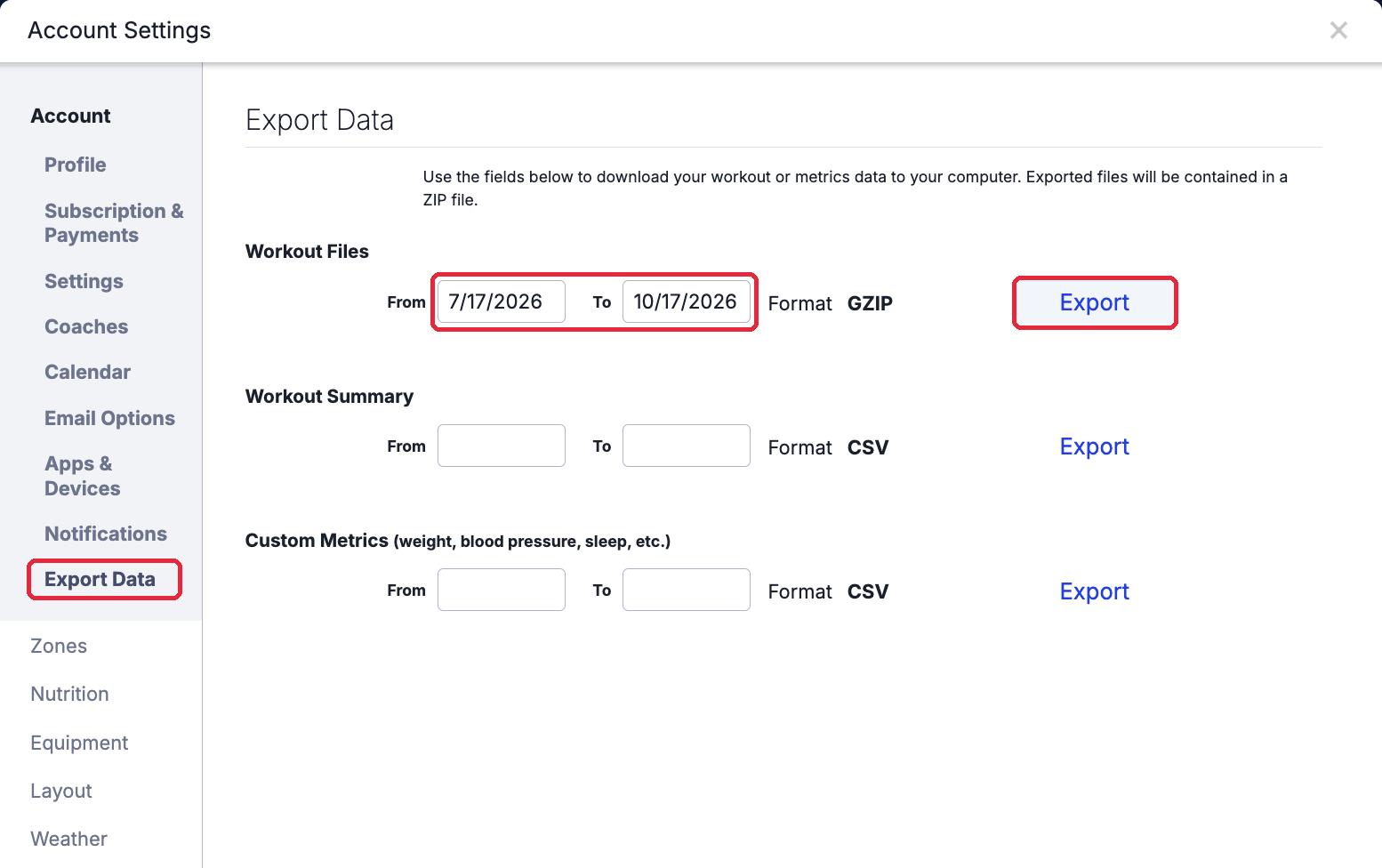
Steps 2 to 4 all happen on this screen: Export Data on the left, then the Workout Files row. Enter your dates in the Workout Files row
Use the top row, Workout Files. Enter a From and To date no more than 3 to 4 months apart.
- Type dates as month/day/year, for example 8/10/2026.
- Leave the format as GZIP.
Click Export on that same row
Click the Export button at the end of the Workout Files row. It can take a minute to prepare.
Ignore the Workout Summary and Custom Metrics rows. You don't need to click Save.
Click the download link
When the Export Complete box appears, click the link in it. The file is named like
WorkoutFileExport-Lastname-Firstname-2026-08-10-2026-11-09.zip.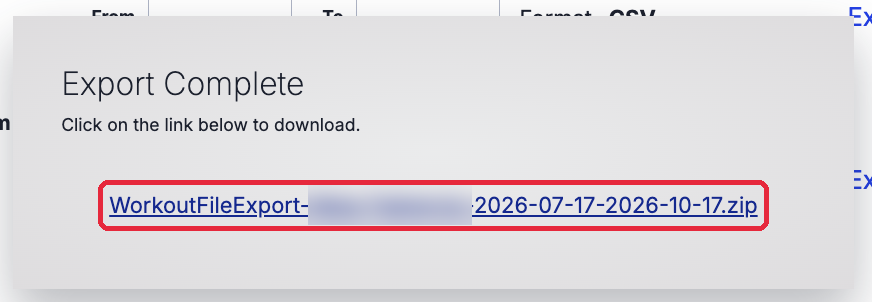
Click the .zip link to download it. Find the .zip in your Downloads
The file is saved to your Downloads folder. Don't unzip or rename it.
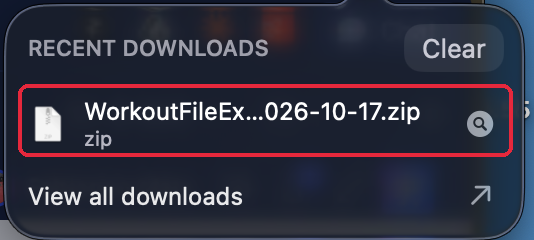
Your browser's downloads list shows the .zip once it's saved.
Exporting a longer history
Repeat steps 3 to 6 for each older block. Each block ends the day before the previous one started, so nothing is missed. For example, exporting a full year on 9 November 2026 takes four exports:
| Export | From | To |
|---|---|---|
| 1 | 8/10/2026 | 11/9/2026 |
| 2 | 5/10/2026 | 8/9/2026 |
| 3 | 2/10/2026 | 5/9/2026 |
| 4 | 11/10/2025 | 2/9/2026 |
Use today's date for your own first export and count back from there.
Before you move on, check that you have:
- one .zip file for each block
- every file still zipped, with its original name
Then go to Send us your files below.
Option 2: Export from Garmin
This downloads every workout in your Garmin Connect account as an original .fit file, all in one .zip. Use a computer if you can.
Open the export page
Go to file-export.fly.dev and keep it open. You'll paste your key here at the end.
Get a Garmin API key
In a new tab, go to developer.garmin.com/gc-developer-program/overview and click Set up now under Personal.
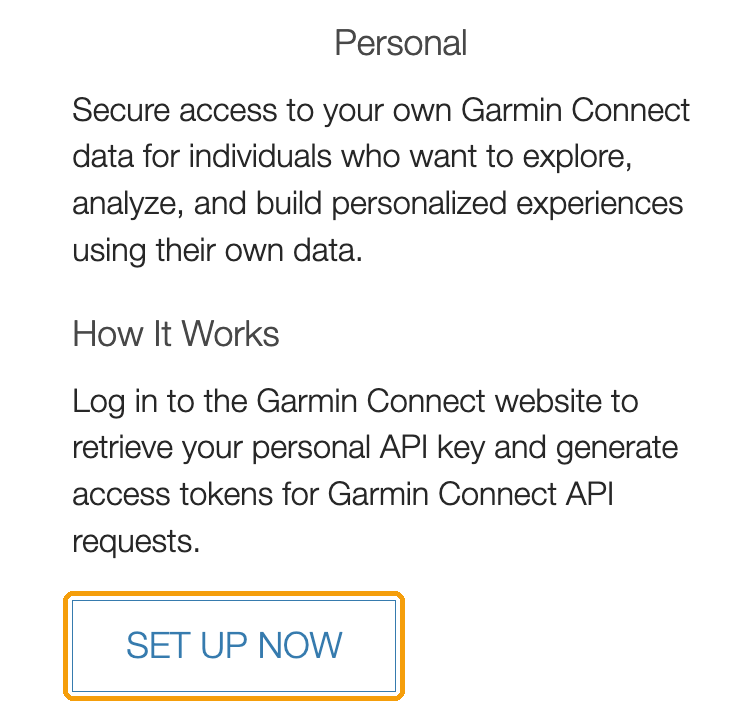
Under Personal, click Set up now. Create a new personal API key
Sign in to Garmin Connect if asked, then choose to create a new personal API key.
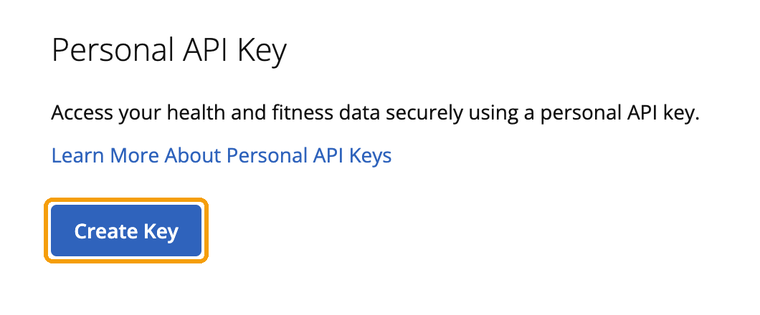
Create a new personal API key. Set the expiry and copy your key
Set Key Expires In to 1 year and click Create. Copy your key right away. Garmin only shows it once.
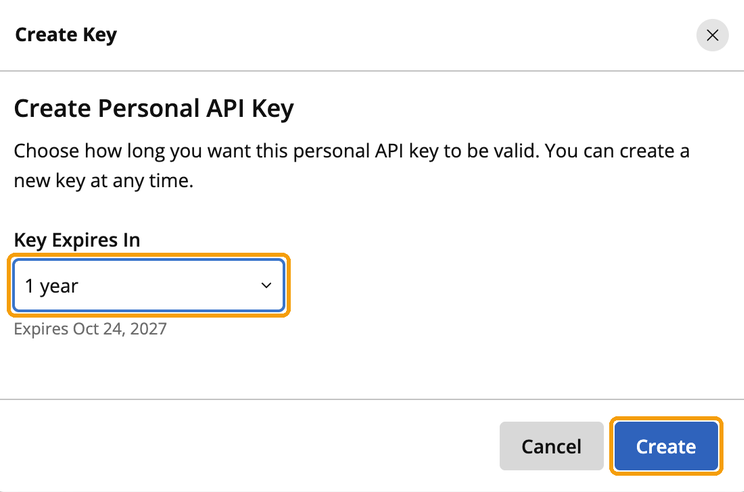
Set Key Expires In to 1 year, then click Create. Paste the key into the export page
Paste it into Your Garmin API key on the export page and click Connect.
Download the .zip
When your export is ready, it downloads to your computer. Check your Downloads folder. Don't unzip or rename it.
Then go to Send us your files below.
About your key and files: your key is only used to read your activities for this export and is never stored. You can delete it in Garmin Connect when you're done. Files are deleted from the export server 48 hours after your export is ready, so download yours soon.
Send us your files (TrainingPeaks and Garmin)
The files are too big for email, so you share them through your own Google Drive. We can only import them if we can open the folder.
Make a folder in your Google Drive
For example, augo export Your Name.
Upload all your .zip files into it
Don't unzip them.
Give us access
Right-click the folder, choose Share, add info@augotraining.com and click Send. If you'd rather use a link, set General access to Anyone with the link.
Copy the folder link
Choose Share, then Copy link.
Email us the link
Send it to info@augotraining.com with:
- your full name
- the email address you use in augo
- your coach's name
- where the files are from (TrainingPeaks or Garmin)
Important: if we can't open the folder, we can't import your data. Please check step 3 before you send the email.
We'll import the files into your augo account for you.
Option 3: Any other source
If your history is in another app or device, we can try to pull up to 5 years of it for you. No files or Google Drive needed.
- Connect the app or device to your augo account first.
- Email info@augotraining.com and ask for a backfill. Include:
- your full name
- the email address you use in augo
- which app or device your history is in
- how far back you'd like to go (up to 5 years)
This method is less reliable, and we can't promise every workout will come through. If your history is also in TrainingPeaks or Garmin, use Option 1 or Option 2 instead.
For coaches
Want to see an athlete's past training? Send them the link to this page. Only athletes can access their own TrainingPeaks, Garmin or other accounts, so they need to do the export and send the email themselves.
If something goes wrong
- TrainingPeaks export fails or never finishes: shorten the date range (for example to 2 months) and try again.
- TrainingPeaks menu looks different: make sure you're on the website on a computer, not the mobile app.
- Lost your Garmin key: Garmin only shows it once. Create a new key and use that one.
- Garmin download link stopped working: files are deleted after 48 hours. Run the export again.
- Can't find the download: check your browser's downloads list or the Downloads folder on your computer.
- We wrote back saying we can't open your folder: share it again with info@augotraining.com, or set it to Anyone with the link.
- Still stuck? Ask your coach, or email info@augotraining.com with a screenshot of where you are.
Related questions
How do I move my TrainingPeaks history to augo?
Export your workout files from TrainingPeaks on a computer (Settings, then Export Data), 3 to 4 months at a time. Upload the .zip files to a Google Drive folder, share it with info@augotraining.com and email us the link. We import the files for you.
Can I import my full Garmin history?
Yes. The Garmin export downloads every workout in your Garmin Connect account as .fit files in one .zip. Share it with us through Google Drive and we import it. Connecting Garmin in augo only brings in the last 30 days, so the export is how you get more.
Do I need to unzip the files?
No. Upload the .zip files to Google Drive as they are. Don't unzip or rename them.
Is my Garmin API key stored?
No. Your key is only used to read your activities for the export and is never stored. You can delete it in Garmin Connect when you're done.
Can my coach do the export for me?
No. Only athletes can access their own TrainingPeaks, Garmin or other accounts, so the athlete does the export and sends the email. Coaches can send their athletes the link to this page.
What if my history is in another app?
Connect the app or device in augo, then email info@augotraining.com to ask for a backfill of up to 5 years. This is less reliable, so if your history is also in TrainingPeaks or Garmin, export from there instead.